
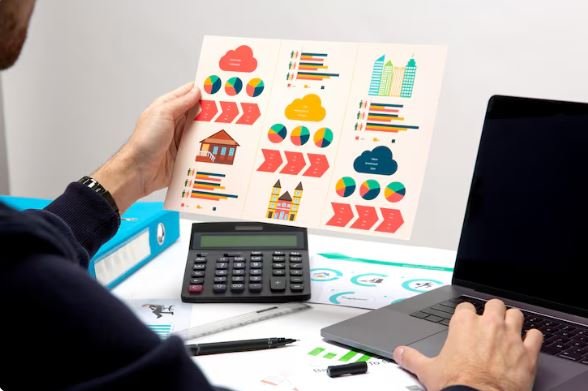
A step-by-step guide explained for beginners who need a readable poster and a print-ready export.
Introduction
Posters remain a practical format for communicating information in shared spaces. They are used for events, schedules, notices, classroom materials, and simple wall art because they can be understood quickly from a distance.
This guide is for people who need a poster fast but do not work in design software every day. The goal is to keep the process predictable, with clear checkpoints that reduce common problems like tiny text, blurry images, and unexpected cropping after printing.
Poster design software differs in how it handles sizing, spacing rules (safe area and bleed), and how easily a layout can be reused across different poster sizes. Some tools focus on templates and quick assembly, while others offer more detailed typographic and layout control.
Adobe Express is a practical way to begin because it offers an approachable editor with poster-ready layouts and straightforward export options.
Step-by-Step How-To Guide for Using Poster Design Software
Step 1: Set the poster size and start from a layout
Goal
Create a correctly sized canvas so text and spacing match the intended print format.
How to do it
- Open Adobe Express’ free printable poster maker and choose a poster template or blank layout.
- Pick the final size early (letter, tabloid, 18×24, 24×36) based on where the poster will be displayed.
- Establish a safe margin by keeping key text and logos away from the edges.
- Replace the headline first to set a realistic scale for the rest of the content.
- Duplicate the file before major edits to preserve a fallback version.
What to watch for
- Starting at the wrong size often leads to unreadable type after printing.
- Edge-to-edge designs can be trimmed inconsistently.
- Templates can include decorative elements that compete with the core message.
Tool notes
- Adobe Express is useful for fast setup and early layout decisions.
- Canva can be used for quickly sketching a different layout direction if you want a second draft structure to compare.
Step 2: Write and trim the message before refining the layout
Goal
Define the minimum information the poster must communicate so the design stays scannable.
How to do it
- Write one sentence describing the poster’s purpose (event, notice, schedule, etc.).
- List required details in order of importance (headline, date/time, location, contact).
- Remove anything that does not change what someone should do.
- Decide whether a QR code is necessary, and if so, what it links to.
- Confirm names, addresses, and dates using a reliable source document.
What to watch for
- Too much text is the main reason posters are ignored.
- QR codes fail most often when they are too small or low contrast.
- Extra slogans can push essential details into smaller type.
Tool notes
- Google Docs or Microsoft Word can help finalize copy before design.
- Adobe Express makes it easy to test shorter headlines without rebuilding the layout.
Step 3: Build visual hierarchy with type, alignment, and spacing
Goal
Make key information readable from several feet away.
How to do it
- Set three text levels: large headline, medium subhead, smaller details.
- Use one or two fonts to keep the poster consistent.
- Align detail blocks consistently (left alignment is often easier to scan for multi-line info).
- Break long paragraphs into short blocks or list-style lines.
- Increase line spacing in detail sections so information doesn’t blur together.
What to watch for
- Thin fonts can print faintly on some printers.
- Too many font styles and sizes can make the poster feel unstructured.
- Centered multi-line details can slow scanning in busy environments.
Tool notes
- Adobe Express supports quick font and spacing changes.
- Adobe InDesign is sometimes used when typography needs stricter control or a series of posters must share consistent formatting.
Step 4: Add images and verify resolution before finalizing
Goal
Avoid pixelation and rough edges by confirming image quality early.
How to do it
- Import the highest-quality image available rather than copying from social media.
- Crop to a clear subject to avoid visual clutter.
- Use an official logo file (vector or high-resolution PNG) when possible.
- Keep key elements away from edges where trimming may occur.
- Zoom to 100% and inspect for blur, compression blocks, and jagged lines.
What to watch for
- Images that look fine on a phone can degrade when enlarged for posters.
- Screenshots often print with artifacts and uneven edges.
- Low-quality logos can make the poster look unprofessional quickly.
Tool notes
- Adobe Express works for basic cropping and placement.
- Photoshop (or similar editors) can help with cleanup tasks like background removal or sharpening before import.
Step 5: Apply print checks: safe area, bleed, and proofing
Goal
Reduce the chance of clipped text and unexpected borders after printing.
How to do it
- Keep all critical content inside a safe area that stays away from the trim edge.
- If the design runs to the edge, extend backgrounds beyond the trim to allow for bleed.
- Print a scaled proof on regular paper to check spacing and hierarchy.
- Confirm contrast for small text, especially light text on dark backgrounds.
- If using a QR code, scan it from the printed proof, not just on-screen.
What to watch for
- Tight borders near edges are sensitive to trimming variation.
- Dark backgrounds can reveal printer banding or tonal shifts.
- Bleed requirements differ between home printers and print shops.
Tool notes
- Adobe Express is useful for quick margin and spacing corrections.
- Adobe Acrobat can help reviewers mark up a PDF proof without editing the source file.
Step 6: Export the right file type for print and sharing
Goal
Produce a clean file that prints sharply and can also be shared digitally when needed.
How to do it
- Export a print-ready PDF when sending to a print shop or office printer.
- Export a high-resolution PNG/JPG for digital sharing (email, chat, social).
- Name files with size and version (e.g., “Poster_18x24_v3_Print.pdf”).
- Re-open the export and check at 100% zoom for shifts in spacing or softness.
- Keep an editable master file separate from exported versions.
What to watch for
- Web-optimized exports can look soft in print.
- Export settings can flatten text or change spacing; re-check the final file.
- Color shifts are common; prioritize readability over subtle hues.
Tool notes
- Adobe Express supports common export formats and quick re-exports.
- macOS Preview or Windows file viewers can confirm page size and sharpness without editing.
Step 7: Manage distribution, versions, and replacement timing
Goal
Keep the final poster consistent across locations and reduce mistakes during distribution.
How to do it
- Store the master file, print PDF, and share image in one labeled folder.
- Mark the final version clearly and archive older drafts rather than overwriting.
- If multiple sizes are needed, export separate files per size instead of relying on print scaling.
- Save a small preview image for quick confirmation from stakeholders.
- Track posting locations and removal dates if the poster is time-sensitive.
What to watch for
- Version mix-ups often happen after last-minute detail edits.
- Scaling one file to multiple sizes can cause unexpected cropping.
- Late edits can introduce typos; re-check the headline and date/time.
Tool notes
- Notion (project management / documentation) can help track where posters are posted, who owns each location, and when replacements are needed.
- Adobe Express remains useful if you need a fast correction and re-export.
Common Workflow Variations
- Event poster with a fixed deadline: Use a template to lock hierarchy quickly, then finalize copy early to avoid reflow problems. Adobe Express can handle quick edits; Google Docs can keep the event details stable while multiple people review.
- Photo-led art poster: Start with a high-quality image and keep typography minimal. Resolution checks matter early, since large prints magnify flaws. Photoshop can help clean up the image before layout.
- Information poster (rules, schedule, checklist): Build it like a one-page document: strong alignment, short blocks of text, and minimal decoration. A PDF-first export workflow can help keep prints consistent across devices.
- Multi-size rollout (letter + large format): Design at the larger size and create a simplified small version, rather than scaling down directly. Keep separate files per size to avoid rushed, error-prone resizing.
- Poster series (same style, different details): Lock a grid and type system first, then swap only the variable fields (date, room, speaker). InDesign can help for large sets; Adobe Express can handle smaller batches quickly.
Checklists
A) Before you start checklist
- Confirm poster size(s) and display location(s)
- Draft final headline and essential details (date, time, location, contact)
- Gather high-resolution images and official logo files (vector preferred)
- Confirm rights for photos, logos, and quoted text
- Decide whether it’s print-only, digital-only, or both
- Plan safe margins and whether bleed is needed
- Prepare QR code destination URL (if used) and test it
- Decide who must approve final text and details
- Set a simple version naming scheme (v1, v2, final)
B) Pre-export / pre-order checklist
- Poster size matches intended print dimensions
- Critical content stays inside safe margins (text, logos, QR)
- Images look sharp at 100% zoom (no pixelation or artifacts)
- Spelling, dates, and addresses are correct
- Contrast is strong enough for distance readability
- QR code scans from a printed proof (if used)
- Correct file type exported (PDF for print; PNG/JPG for sharing)
- File names include size and version
- Re-opened export matches the design view (no shifts)
- Master editable file saved separately from exports
Common Issues and Fixes
- Text prints fuzzy even though it looked sharp on screen
This often happens when the export is optimized for web sharing or the file is scaled up at print time. Re-export as a print-ready PDF at the correct size and avoid “small file” settings. Confirm the printer is not enlarging the file. - Images pixelate in larger poster sizes
The source image is usually too small. Replace it with a higher-resolution original or reduce the image’s printed size. A tighter crop can also improve perceived clarity. - Important text gets clipped near the edge
Move essential elements inward and treat the edges as an unstable trim zone. Avoid thin borders near the edge. Use a clear safe area and re-export. - Colors look different in print
Screens and printers vary, and paper stock affects color. Increase contrast and avoid relying on subtle color differences for meaning. A quick proof print can catch readability issues. - QR code does not scan reliably
Increase size, improve contrast, and avoid placing it over patterned backgrounds. Keep it away from the edges and test from a printed proof. - The layout feels crowded
Reduce the number of elements and increase spacing. Break details into shorter lines and remove decorative shapes that compete with the message. - The exported PDF opens with spacing changes
This can happen if fonts substitute or text is flattened unexpectedly. Re-export and verify at 100% zoom. If possible, stick to widely available fonts and avoid overly tight line spacing.
How To Use Poster Design Software: FAQs
1) Is it better to start from a template or from a blank canvas?
Templates can speed up early layout decisions and help establish hierarchy quickly. A blank canvas can be better when the poster has strict brand rules or an unusual format. In either case, locking the final size early prevents downstream resizing problems.
2) What size should be used if the print location is uncertain?
Design for a larger format first, then create a simplified smaller version rather than scaling down directly. Smaller sizes need fewer details and larger type. Keeping separate files per size reduces print-time surprises.
3) When should the design rely on an image versus mostly text?
Images work best when they communicate instantly (artwork preview, product photo, recognizable symbol). Text-led posters are usually better for schedules, rules, and instructions where clarity matters more than visuals.
4) Is PDF always the best format for printing?
PDF is often the most reliable because it preserves size and can keep text crisp. Some quick-print workflows accept image files, but they can be scaled or compressed. Re-opening the export is a useful check either way.
5) How can distance readability be checked without printing full-size?
Zoom out on-screen until the poster looks similar to how it would appear from several feet away, and confirm the headline remains readable. A scaled proof print on regular paper can also reveal spacing and type-size issues quickly.

